
Logging in from Windows
All logins to the CSF3 must be done with an SSH (secure shell) app. On Windows we highly recommend the free MobaXterm program, from Mobatek, (installation instructions given below) which provides everything needed to login to the CSF, run graphical programs and transfer files. It replaces the separate PuTTY, Xming and WinSCP programs we used to recommend.
Installation of MobaXterm is quick and simple and you do not require administrator access to your PC (simply download and extract a .zip file).
Old versions of MobaXterm
If you already have MobaXterm installed, we recommend that you install the latest version, particularly if your version is several years old.
Please follow the steps below.
Download and Install MobaXterm
Please visit the MobaXterm download page and download one of the following packages:
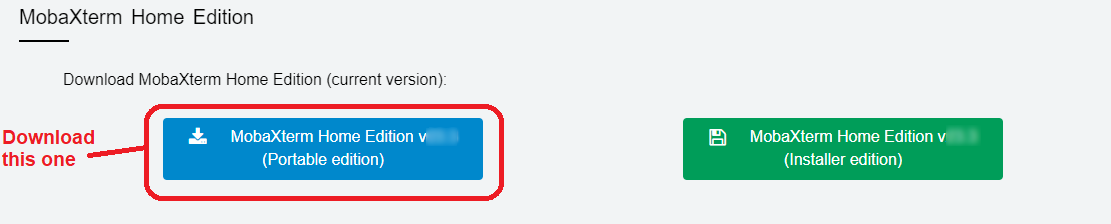
- The MobaXterm Home Edition (portable edition) – THE portable edition IS RECOMMENDED – it is a
.zipfile which can be unpacked anywhere without needing the Administrator password (ideal for your P-Drive for example).- Right-click on the downloaded
.zipfile
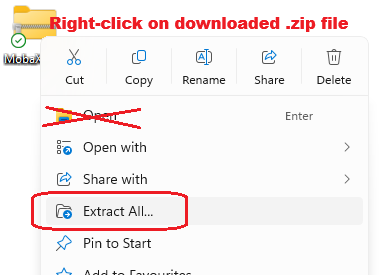
- Select Extract all…
(note, you must do an Extract all…, simply double-clicking on the.zipfile to browse the content will not install the software correctly!) - This will create a
MobaXterm_vX.Yfolder containing the software (the X.Y numbers will change depending on the current version downloaded). Make a note of where this folder is (your Desktop? Your P-Drive? Your Downloads folder?)
- Right-click on the downloaded
- OR the MobaXterm Home Edition (installer edition) – requires the Administrator password to install so is NOT RECOMMENDED for campus PCs / University laptops, but can be installed on a personal laptop /desktop. If you do wish to do an administrator install, run the installer and follow the instructions.
- This will put the MobaXterm Personal Edition icon on your dekstop (and in the Start Menu)
That’s it – the software is installed.
Running MobaXterm
- Start MobaXterm Personal Edition either from
- the
MobaXterm_vX.Ydirectory created when you unzipped the.zipfile – double-click theMobaXterm_Personal_X.Yapplication (if you used the portable edition .zip file)
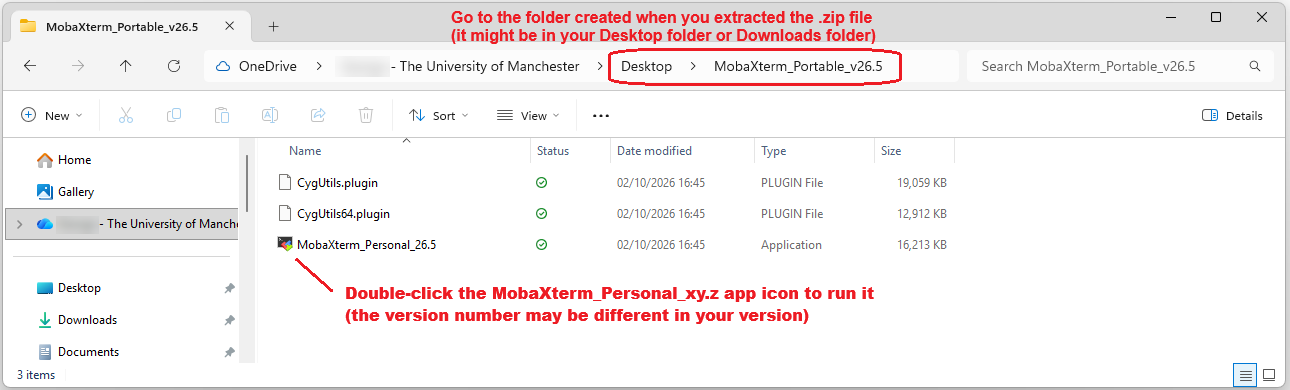
- or the Start menu (if you used the installer edition)
- the
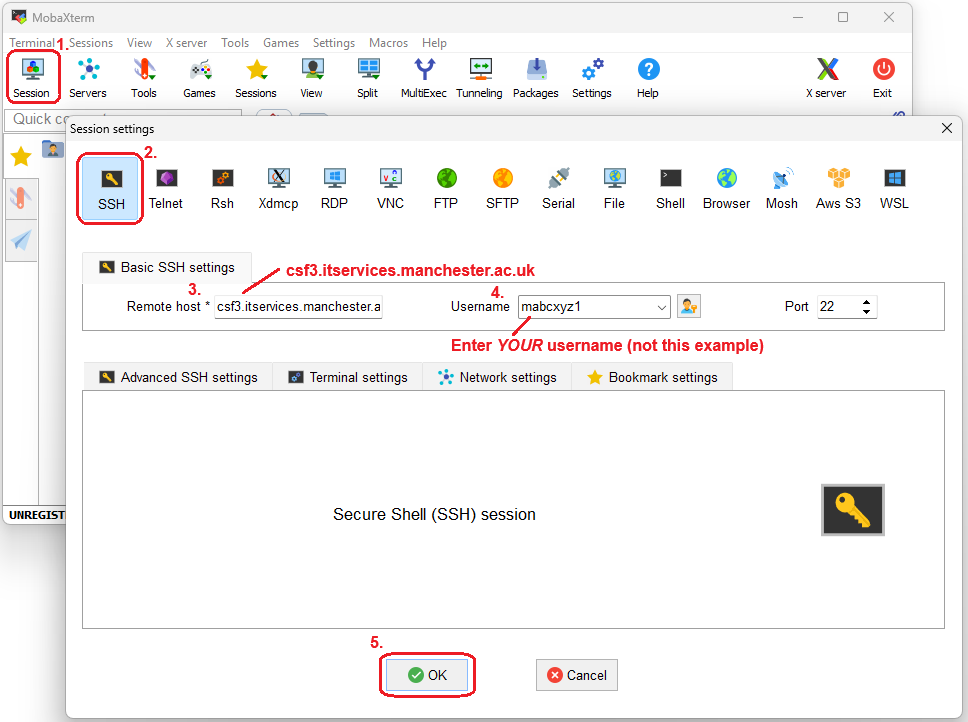
- Select the “Session” button in the top left of the MobaXterm window:
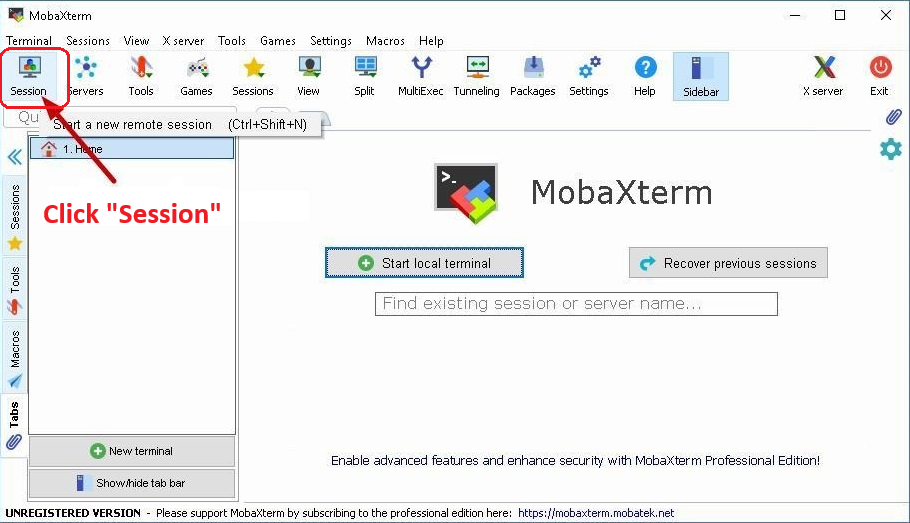
- Select the “SSH” button in the top left. Enter the remote host as
csf3.itservices.manchester.ac.uk. Complete the details as shown – tick the “Specify Username” box, then fill in the username box with your UoM username. Then click OK.
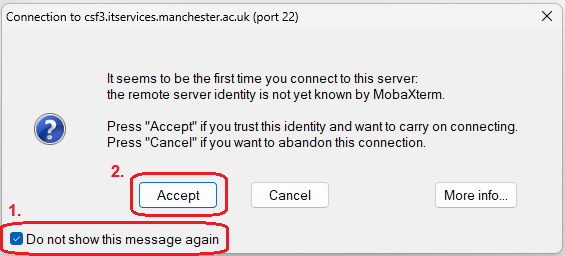
- If this is the first time you’ve connected to the CSF, you may be asked whether you trust the identity of the CSF. Press Accept (it is safe to connect to the CSF.)
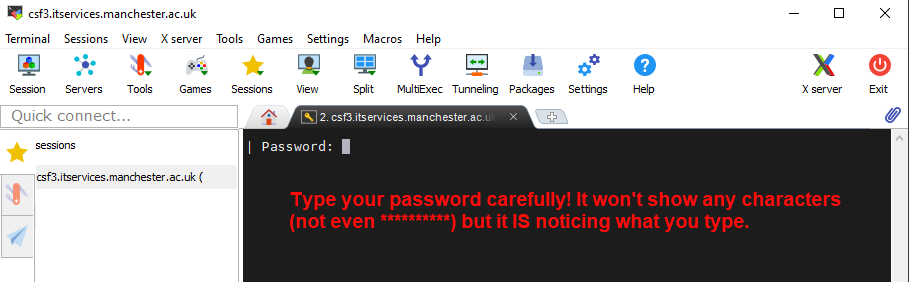
- The MobaXterm main window giving you an SSH connection to csf3 will open. Enter your central University IT password when asked (characters will NOT appear on screen as you type your password, for security, so please type carefully – MobaXterm IS receiving characters from the keyboard!!). If you are connecting from ON-CAMPUS you will also need to authenticate with your 2FA device.
If you use the Duo mobile app as your 2FA device, Enter ‘1’ at the prompt and press Enter. Once the push notification has been received via the Duo mobile app ‘Approve’ the request in order to log on.
-
- University managed laptops already have the GlobalProtect software installed. You can also download it and run it on your home PC/laptop.
- If not already installed, please install the IT Services VPN Software (GlobalProtect) on your home PC/laptop.
- This facility is provided by IT Services (not Research IT). Requests for help with the VPN and/or GlobalProtect should be made to via the Support Portal.
Enter a passcode or select one of the following options:

1. Duo Push to +XX XXXX XXX555

Passcode or option (1-1): 1           Type a 1 then press Enter
OR
If you use a Duo fob as your 2FA device, generate a passcode with the fob, type the passcode at the prompt and press Enter
Password:
Duo two-factor login for username

Passcode: 123456
Off-campus
If logging in from off-campus you will first need to be connected to the University VPN (GlobalProtect) – You may already connect to the University VPN in order to access your email.
_ssh: Could not resolve hostname csf3.itservices.manchester.ac.uk: Name or service not known
then your home ISP is very likely preventing the csf3.itservices.... name from being converted to IP numbers (BT Internet has this problem). This is because the CSF uses private 10.99.... IP numbers. Usually, when you are signed in to GlobalProtect, these private numbers (private to the University campus) then become available but not all ISPs allow this to work. It is not a problem with the CSF or GlobalProtect.
The solution is to use the CSF IP numbers directly. Use one of the following in the Remote Host field:
10.99.203.151
OR
10.99.203.152
OR
10.99.203.153
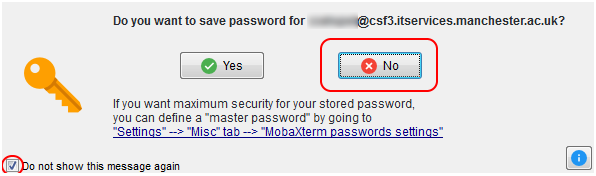
To run GUI apps on the CSF
If you intend to use GUI programs on the CSF (e.g., gedit which is a simple text editor similar to Notepad on Windows, or more complex applications interactively in the batch system) then you don’t need to do anything further – this all works by default when using MobaXterm. Further information on starting GUI applications is available in the srun batch command page.