
Logging in from OS-X and Linux
Log in is with your UoM IT username (not email) and IT password (the same as used for many UoM services) via SSH to csf3.itservices.manchester.ac.uk
All logins to the CSF3 must be done with an SSH (secure shell) app. Linux and OS-X users will be able use the ssh command, which comes with all popular distributions of Linux and OS-X, run from a Terminal program:
- On a Mac: Go > Utilities > Terminal
- On Linux (gnome): Applications > System Tools > Terminal
From the terminal program, to connect to the CSF, for example:
# Note: You will NOT be able to open GUI-apps on the CSF (e.g. gedit) when using this command
ssh username@csf3.itservices.manchester.ac.uk

# To use GUI apps on the CSF (e.g. gedit), use this command on Linux and Mac:
# NOTE: Mac users will first need to install XQuartz and reboot their mac (see below):
ssh -X username@csf3.itservices.manchester.ac.uk
     #
     # UPPERcase X

# In newer macOS use -Y instead of -X
ssh -Y username@csf3.itservices.manchester.ac.uk
     #
     # UPPERcase Y
Replace username with your central University username. Your password is your central IT Services password. You may then be presented with a 2FA stage.
Off-campus
If logging in from off-campus you will first need to be connected to the University VPN (GlobalProtect) – You may already connect to the University VPN in order to access your email.
- University managed laptops already have the GlobalProtect software installed. You can also download it and run it on your home PC/laptop.
- If not already installed, please install the IT Services VPN Software (GlobalProtect) on your home PC/laptop.
- This facility is provided by IT Services (not Research IT). Requests for help with the VPN and/or GlobalProtect should be made to via the Support Portal.
On-campus
If on-campus you will need to authenticate using your 2FA device.
If you use the Duo mobile app as your 2FA device, Enter ‘1’ at the prompt and press Enter. Once the push notification has been received via the Duo mobile app ‘Approve’ the request in order to log on.
$ ssh username@csf3.itservices.manchester.ac.uk
Password:
Enter a passcode or select one of the following options:

1. Duo Push to +XX XXXX XXX555

Passcode or option (1-1):1
OR
If you use a Duo fob as your 2FA device, generate a passcode with the fob, type the passcode at the prompt and press Enter
$ ssh username@csf3.itservices.manchester.ac.uk
Password:
Duo two-factor login for username

Passcode: 123456
To run GUI apps on the CSF
You need functionality known as X windows. This is available on Linux by default.
On a MAC you need to install Xquartz.
Then to run a GUI application on the CSF please add -Y to your command line. e.g.
$ ssh -Y username@csf3.itservices.manchester.ac.uk

# In older macOS use -X
$ ssh -X username@csf3.itservices.manchester.ac.uk
Troubleshooting common errors encountered while trying to run GUI apps on the CSF using XQuartz on macOS
1. Gtk-WARNING **: Cannot open display: Connection refused
You might come across the following error while trying to run GUI apps (e.g. gedit) after some macOS updates:

This is caused by the macOS update which changes some settings in System Preferences of macOS. Shown below are the steps to rectify the changes:
First check if XQuartz starts and stays on without crashing after the update. If It says ‘XQuartz crashed unexpectedly’ then you will need to uninstall it and install it afresh.
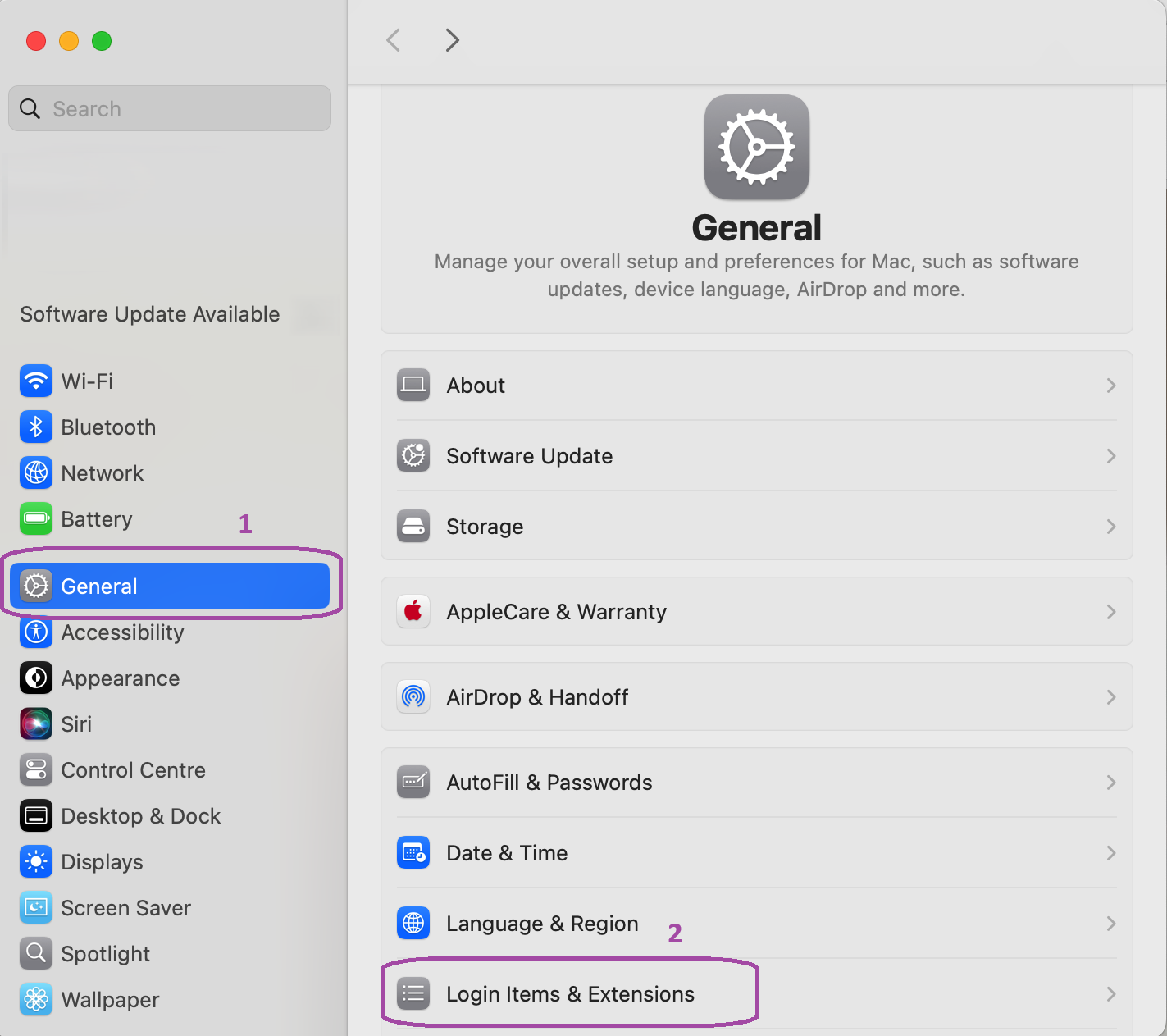
Next open System Preferences then navigate to General (1) > Login Items & Extensions (2)
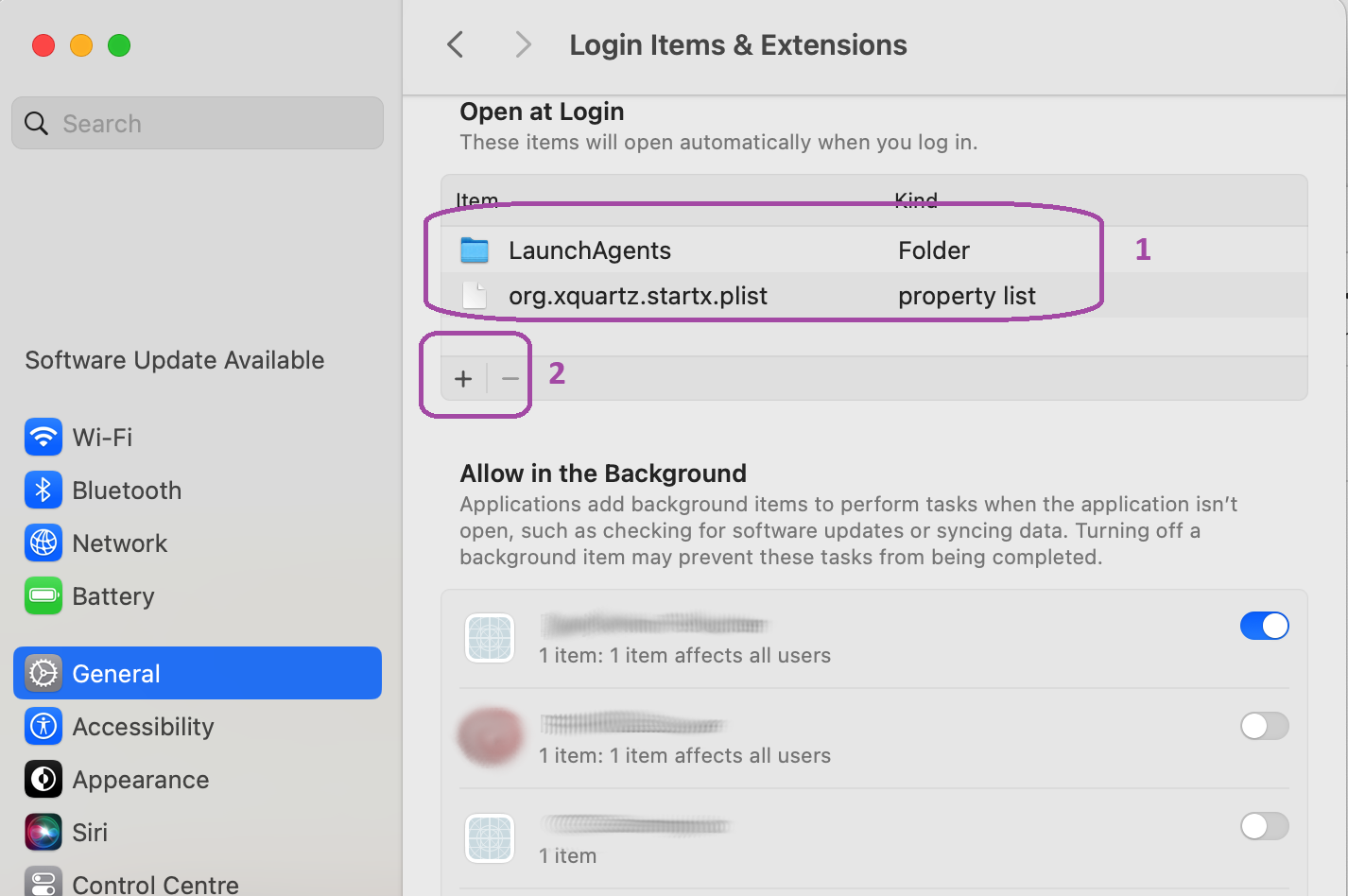
Inside Login Items & Extensions menu, check if LaunchAgents folder is present under Open at login as shown below (1),
if not click + (2) and then navigate and select the folder /Library/LaunchAgents to add it.
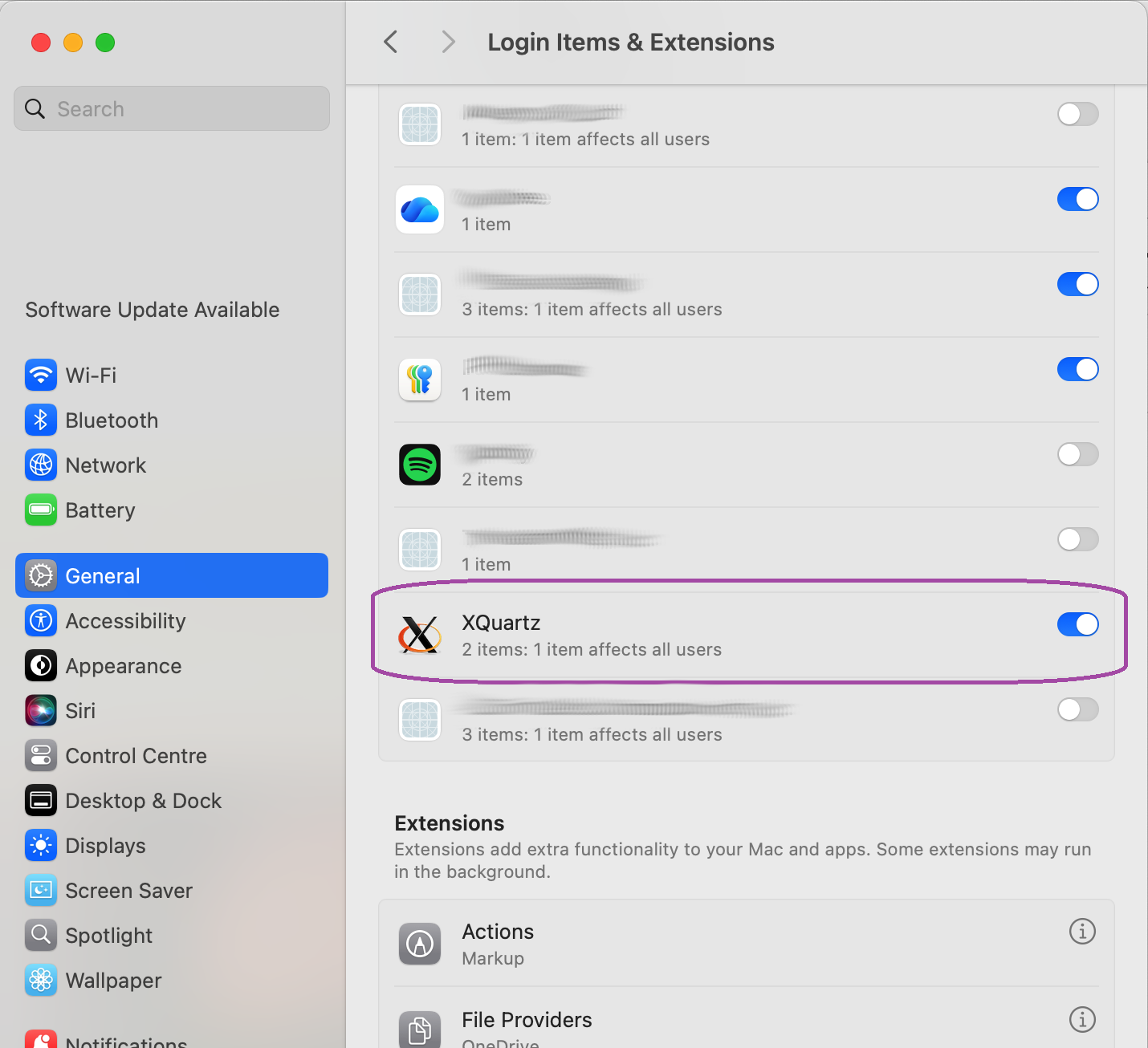
Next, inside the same Login Items & Extensions menu, scroll down to the very bottom and check if XQuartz is enabled as shown below, if not enable it.
Finally close everything, log out of macOS and then re-login. Next, start XQuartz and then try logging in to CSF3 using macOS terminal and start a GUI app (e.g. gedit/xterm). It should work and not throw the above error.