XRDP Setup Guide
XRDP lets you connect to a Linux desktop using an RDP (Remote Desktop Protocol) client. It is available on the Research Virtual Desktop Service (RVDS), which runs on nyx5, nyx6 and nyx7, and provides an alternative to X2Go.
If you have had problems connecting to services such as the iCSF/Incline using X2Go, XRDP may offer a suitable alternative.
Requesting access
Access is NOT enabled by default. Please submit a Connect request via the Research Infrastructure help page, asking for access to “XRDP on the Research Virtual Desktop Service”.
Prerequisites
- If you are off campus, connect to the GlobalProtect VPN first.
- You will need to be added to the XRDP access group before you can connect.
- You must use Duo two-factor authentication with a smartphone (Android or iPhone). Due to limitations with the XRDP setup, Duo hardware tokens (dongles) are not supported.
Connecting
Once your access has been enabled, follow the instructions for your operating system below.
Server addresses
Connect to one of the following servers using port 56224. Enter the full address, including the port:
nyx5.itservices.manchester.ac.uk:56224nyx6.itservices.manchester.ac.uk:56224nyx7.itservices.manchester.ac.uk:56224
Windows
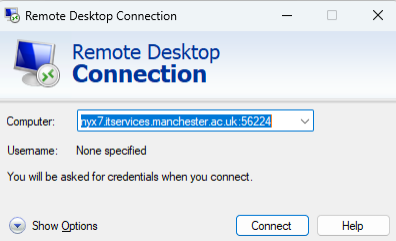
- Open the Start menu, search for Remote Desktop Connection and launch it. You can also search for
mstsc. - In the Computer field, enter one of the server addresses above, including
:56224. - Click Connect, then follow the login steps below.
macOS
Install Windows App before connecting:
- On University-managed Macs, search for Windows App or Remote Desktop in Managed Software Centre (or Self Service+ Software Centre on devices issued from late 2026). Further information avaialbe here: Connect Knowledgebase Article
- On other Macs, install Windows App from the App Store.
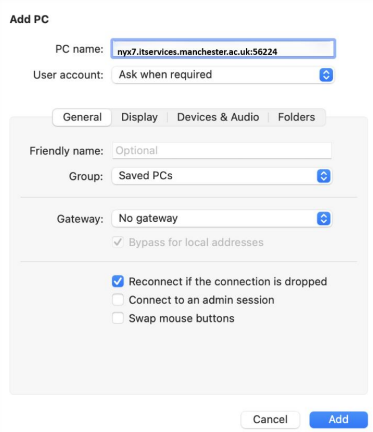
- Open Windows App, click the + button and select Add PC.
- In the PC Name field, enter one of the server addresses above, including
:56224. Leave the other settings at their defaults and click Add. - Double-click the new connection, then follow the login steps below.
To disconnect, click the red close button at the top left of the remote desktop window. This leaves your remote session signed in and applications running, so you can reconnect and resume your work.
Linux
Use Remmina (recommended) or another suitable RDP client.
- Create a connection using the RDP protocol.
- Enter one of the server addresses above, including
:56224. If your client has a separate port field, enter56224there instead. - Connect, then follow the login steps below.
Logging in: all users
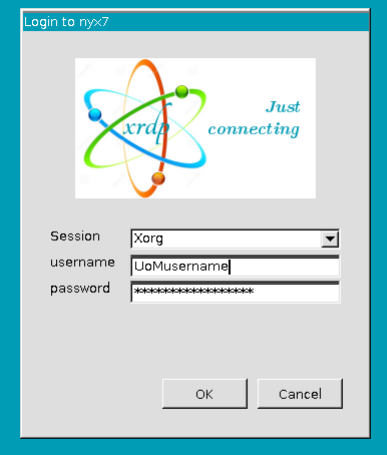
- When prompted, enter your University central username and password.
- A blank blue screen will appear while authentication completes. Check your smartphone for a Duo prompt asking “Are you logging in to X2Go?” Despite the name, this is the expected prompt for XRDP. Approve it if you have just started the connection.
- Your Linux desktop will then load. On your first login, this may take a couple of minutes.
- Open the terminal application to connect to the iCSF, CSF or other research systems as usual.