
Disk usage analysis
Introduction
This page describes methods to analyse your usage of storage like home, scratch, RDS, etc.
scrusage
You can use the utility scrusage to quickly get an overview of your scratch directory in CSF4.
$ scrusage
Your scratch usage: 13.7GB, 233845 files
Fast and detailed interactive disk usage scanning
Running the scan
You can scan your home directory, scratch directory and any other place like and RDS share (where you have at least Read access) using this method interactively. This method is quick and you can look through the sub-directories and find what is consuming most of your space.
# First start an interactive job/session
srun -p multicore -n 8 --pty bash

# Load the ncdu module which will do the scanning
module purge
module load ncdu/2.9.1

# cd to the directory which you want to scan
cd
#or
cd ~/scratch/

# Start the scanning
ncdu -t $SLURM_NTASKS -r
Viewing and navigating the results
Scanning
When scanning of your chose directory is in progress, you will see this:
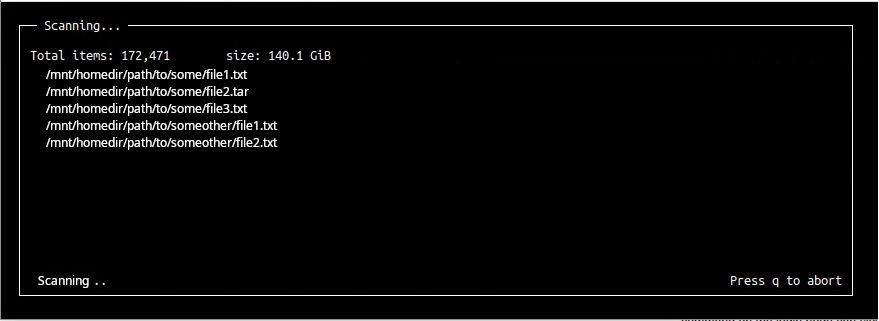
Let the scanning complete.
Scan result
When the scan is completed, you will be presented with the scan results which will look like this:
Sub-directories are listed in the descending order of usage. Usage of each sub-directory is also shown.
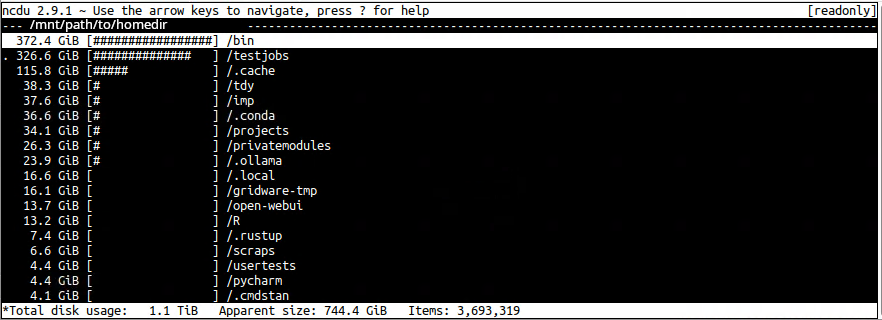
At the very bottom left corner you will see the Total disk usage of the directory you have scanned. It is 1.1TB in the above example.
Far right to it is the total number of files and folders in the scanned directory where it says Items.
Navigating
You can navigate to sub-directories by using arrow keys and then hitting enter. In this example using down arrows key, we have scrolled down and selected/highlighted the .conda sub-directory:
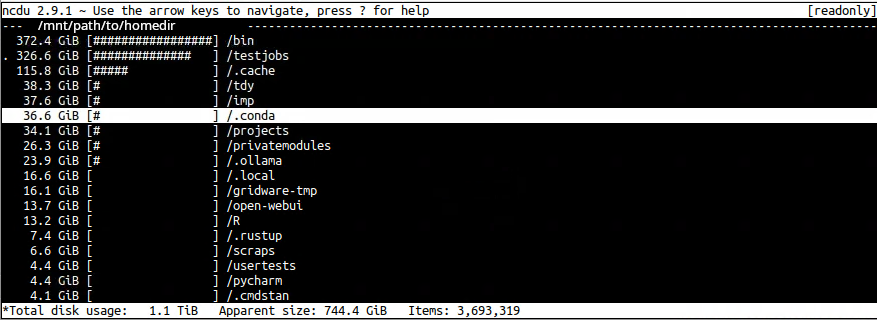
With the .conda sub-directory selected/highlighted, when you hit enter, you will be presented with the usage of the .conda sub-directory:
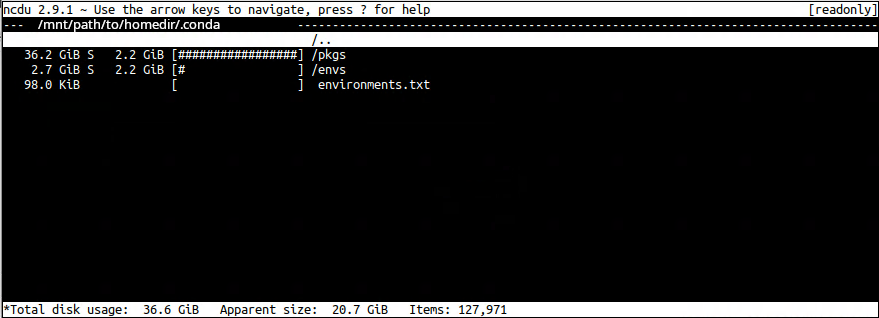
To go back to previous/upper-level directory, navigate to the item /.. and hit enter.
Quitting
Press q to quit ncdu.
Type exit and hit enter to exit the interactive job/session.
TIP: If you have lots of files and folders in the directory that you are scanning, select more number of cores for your interactive job (e.g. -n 16). More number of cores means faster scanning. 8-Core is good for few hundred GB.